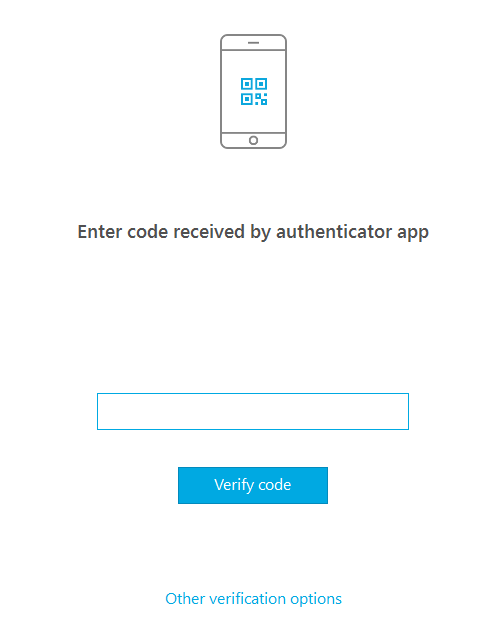
Two-factor authentication adds an extra layer of security to your Tresorit account. Even if your password is compromised, attackers won't be able to access your data without the additional verification step.
Each time you sign in, you'll need both your password and a randomly generated verification code. Codes can be delivered via text message, email, phone call, or authenticator app.
ℹ️ When Single Sign-On (SSO) is used, 2FA is managed by the identity provider and cannot be configured in Tresorit.
Set up two-factor authentication
- Open your Security page.
- Under 2-Step Verification, click Enable.
- Select Activate.
- Email will be set as the default method.
ℹ️ Admins can enforce 2FA for subscription members.
Add a secondary method
We recommend setting up at least two methods. This way, if your primary option becomes unavailable (e.g. you change your phone number), you'll still be able to log in.
- Under 2-Step Verification, click Change settings.
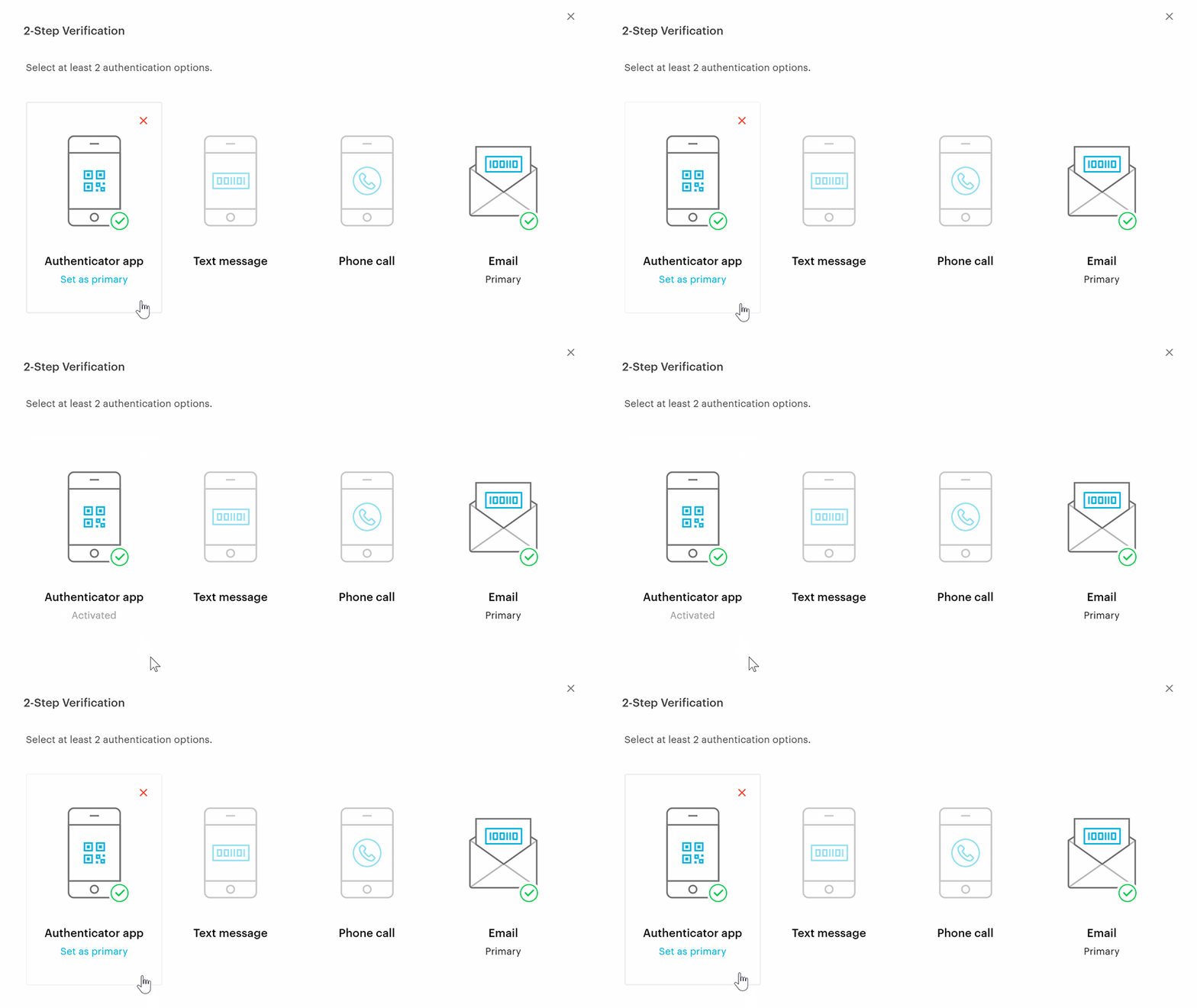
- Hover over the method you'd like to add and select Activate.
- Complete the setup steps for the chosen method.
Change the primary method
If multiple options are available, you can set a new primary method with a single click:
- Hover over the preferred option and select Set as primary.
Switch methods at sign-in
To switch from your primary method, select Other verification options after entering your credentials, and choose a different method.