Syncing files can use a lot of bandwidth and slow down other apps. Bandwidth limits and scheduling let you control when Tresorit syncs at full speed, so your internet stays fast when you need it.
Schedule bandwidth limit
ℹ️ Bandwidth settings are not synced across devices. If you use Tresorit on multiple computers, you must configure these settings separately on each device.
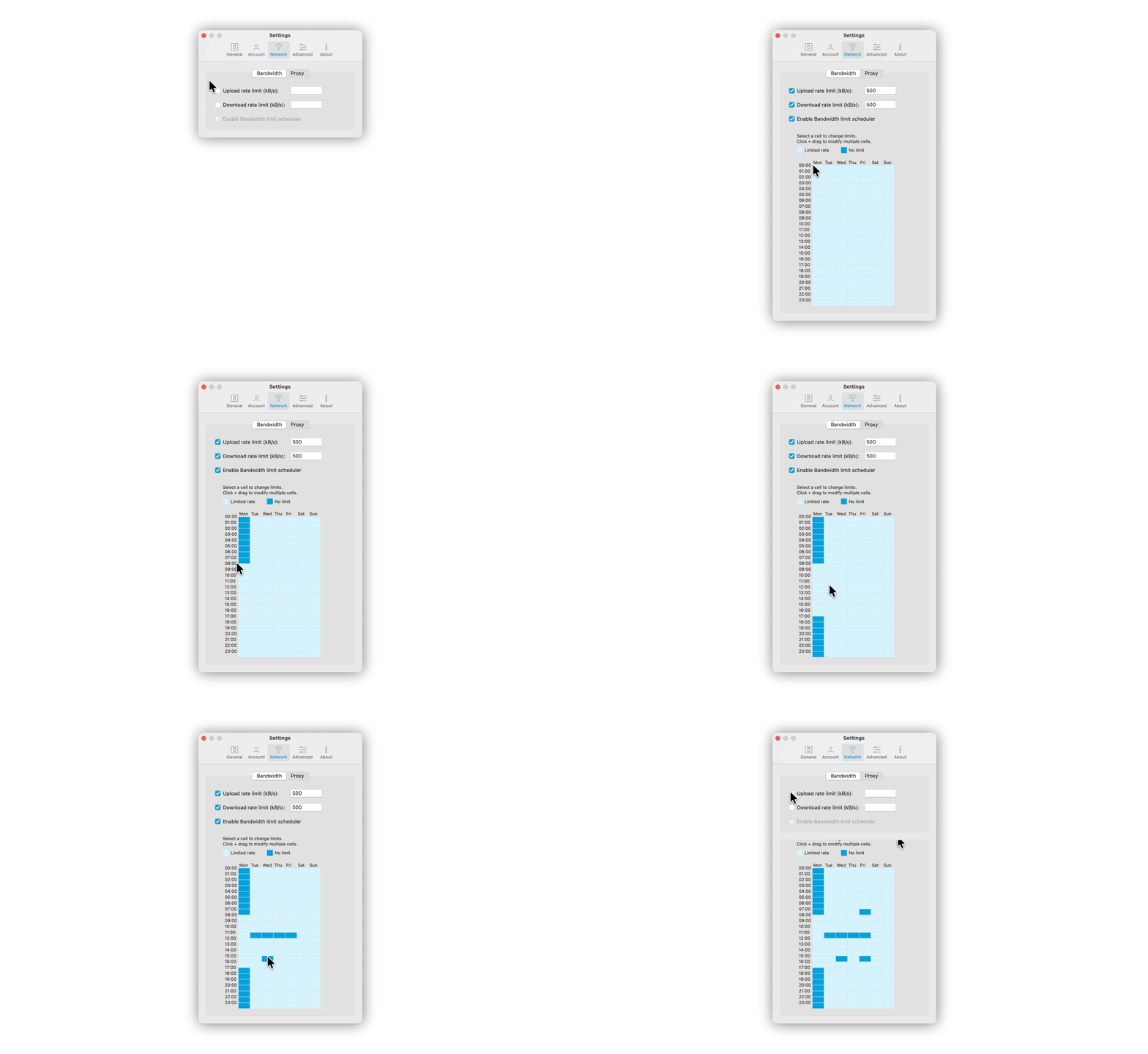
- Open Tresorit.
- Go to Application settings → Network.
- Enable Download limit and Upload limit, then enter your preferred values.
- Turn on the Bandwidth limit scheduler.
- All times are displayed in your local time zone.
- By default, the limits apply to all time slots.
- You can create exceptions where Tresorit can use the full bandwidth.
- All selected cells will have the same setting.
- In the weekly calendar, you have the following options:
- Click on an individual cell to set the time limit for that period.
- Click and drag to select a period (e.g. Monday-Friday, 9 am-5 pm).
- Click on a day label to set the time limit for the entire day, or on a time label to set it for all days.
Disable the bandwidth scheduler
You can turn off the scheduler at any time.
- When disabled, the download and upload limits apply continuously.
- Your schedule is saved and restored automatically when you re-enable the scheduler.