Upload single files, multiple files, or entire folders – their original structure, size, and format will be preserved, and Tresorit will keep them secure, organized, and accessible on all your devices.
Upload folders
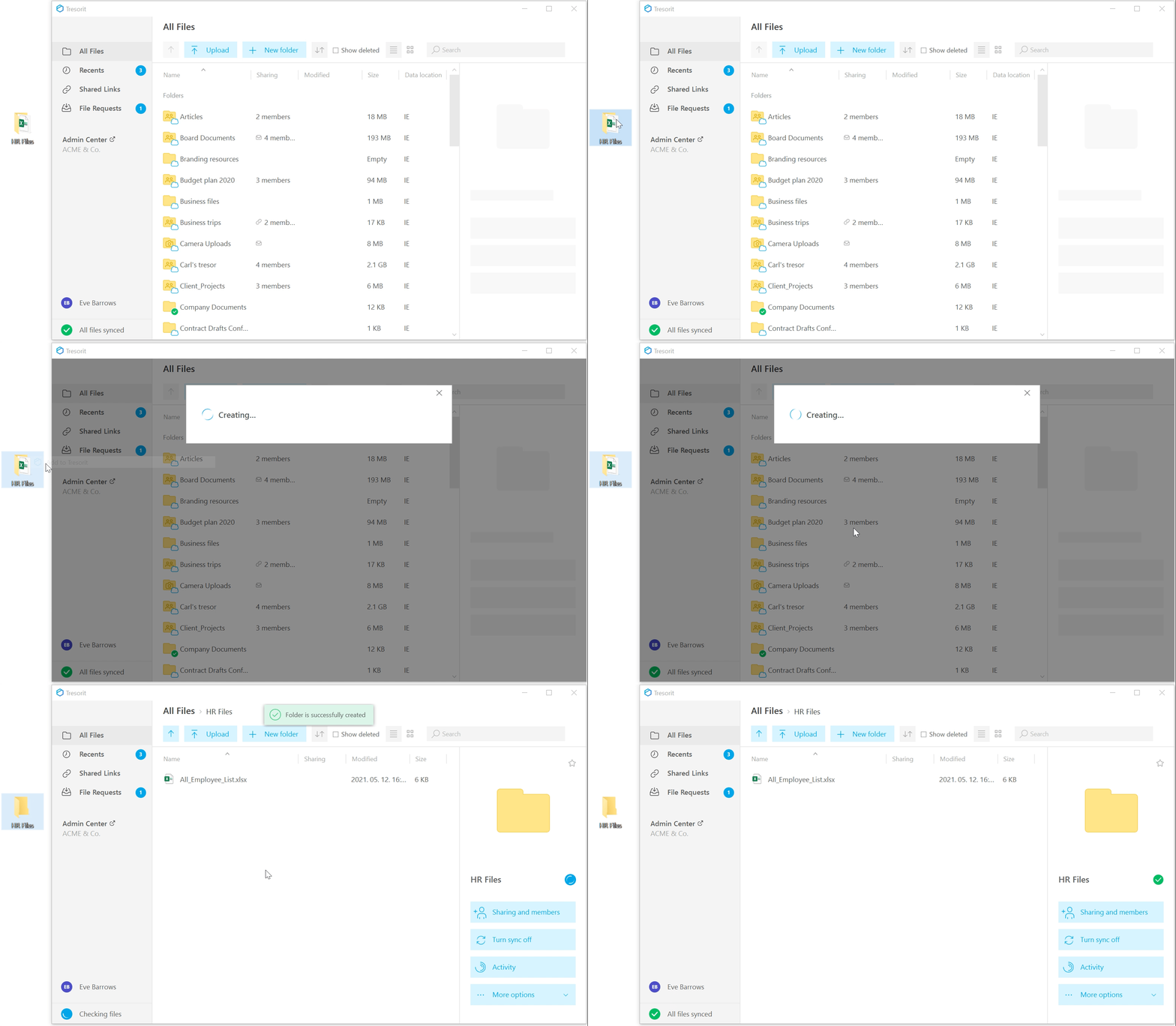
Uploading local folders as main folders to the cloud is only possible in the desktop app. On other platforms (web and mobile), folders can be added only as subfolders.
- Add from the computer
- Drag & drop
- Right-click a local folder and select
Add to Tresorit.
- Tresorit will open and start uploading the folder.
- Wait for the initial upload to finish to avoid errors or missing files.
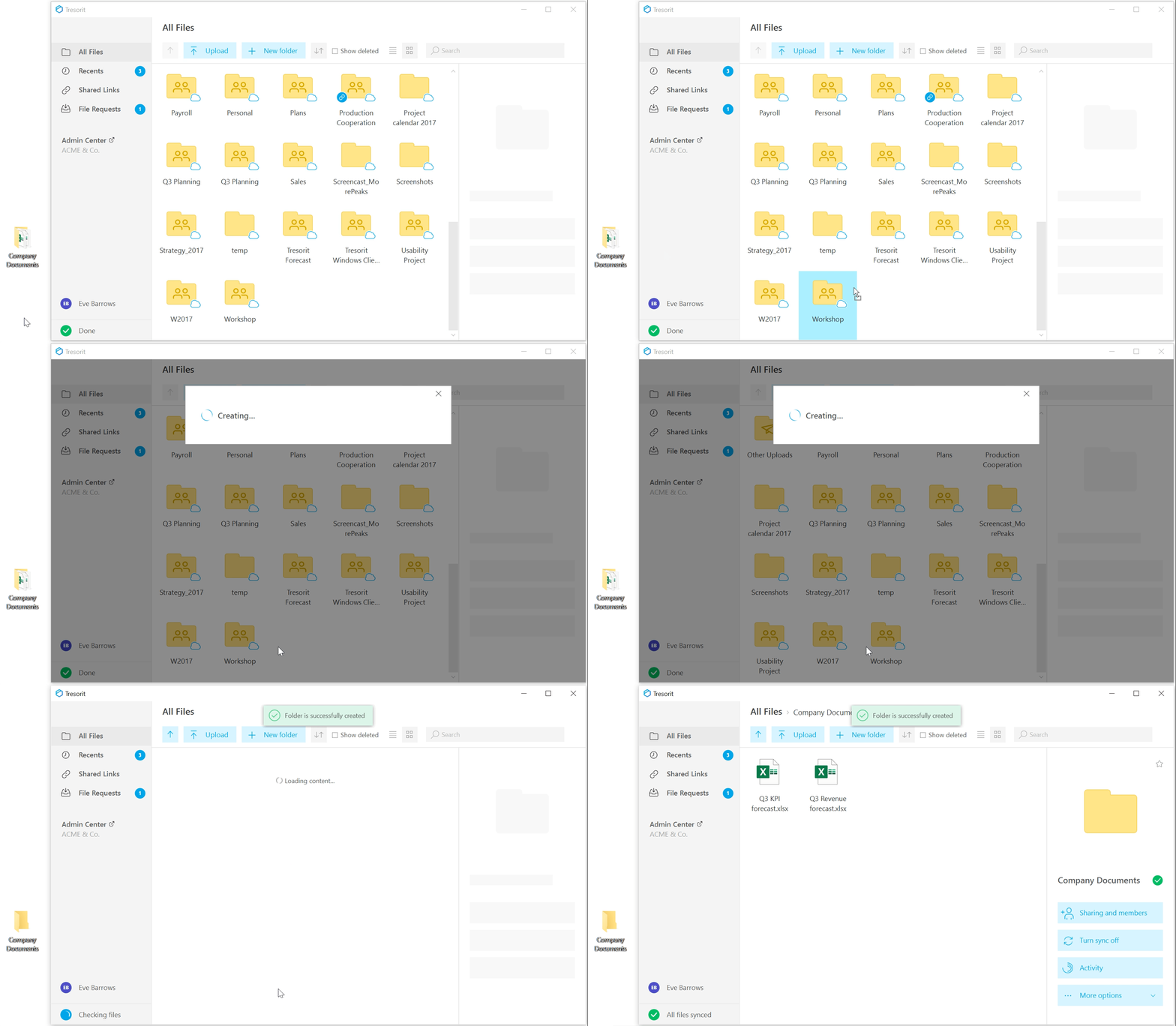
- Open the location in the desktop app where you want to save the folder.
-
Drag the folder from your computer into Tresorit.
ℹ️ If you add it as a main folder, it will sync automatically.
- Wait for the upload to finish to prevent errors or missing files.
Upload files
Upload files to any folder or to the root directory (they will appear under your folders in the All Files view). You can also select and upload multiple files at once.
➡️ See how to upload files on mobile devices.
- In the desktop app
- Drag & drop
- Open the desired location in the desktop app.
- Click
Upload.
- Select Upload files.
- Choose the file(s) you want to upload.
- Wait until the upload is complete.
- Open the desired location in the desktop app.
- Drag the file(s) from your computer into Tresorit.
- Wait until the upload is complete.