Upload files or folders while preserving their original structure and format. Tresorit keeps your data secure, organized, and accessible across all your devices.
Upload folders
- Upload as a main folder
- Upload as a subfolder
Uploading local folders as main folders is only available in the desktop app.
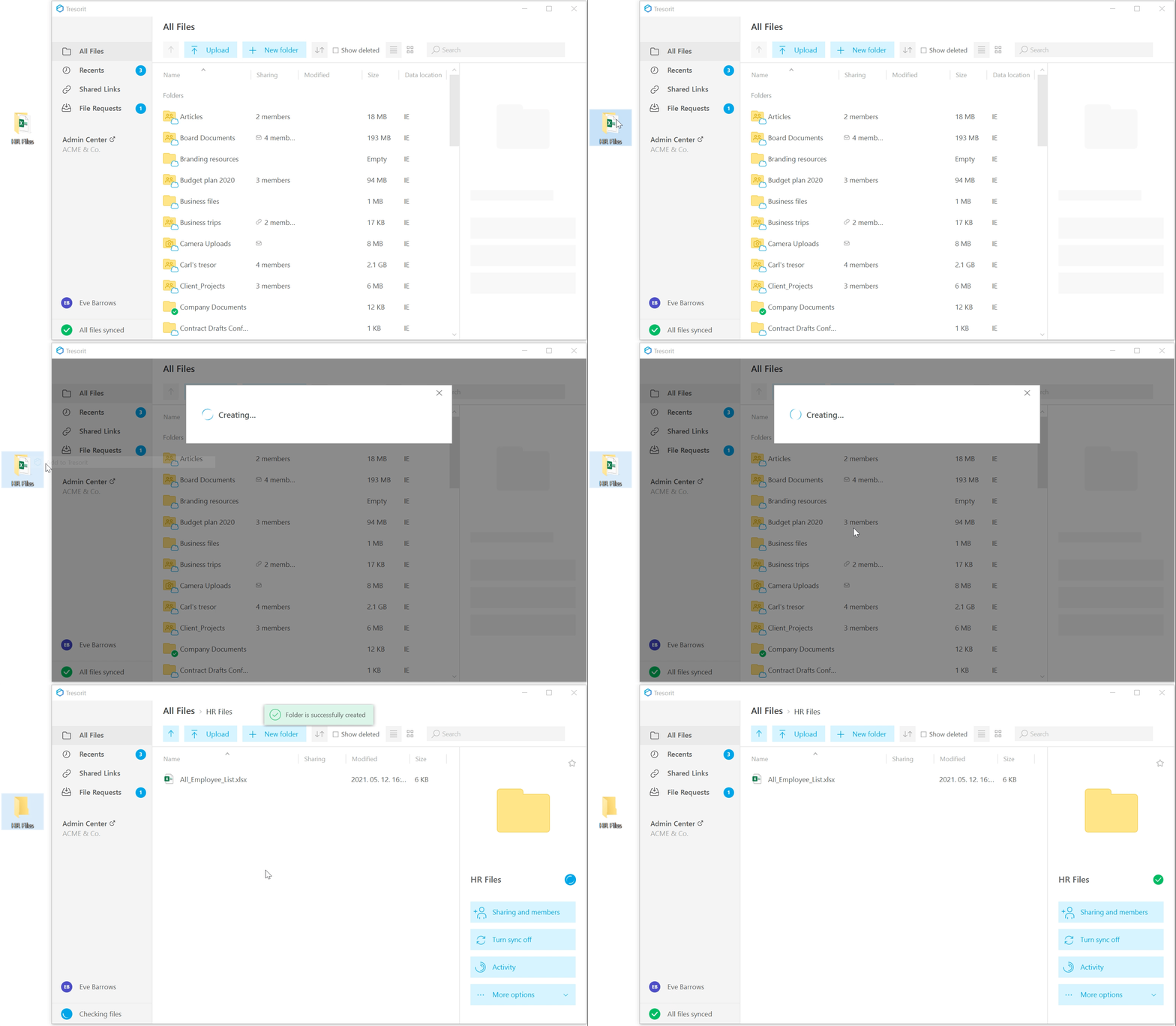
- Right-click a local folder and select
Add to Tresorit
OR drag the folder directly into theAll Files view.
- Tresorit will open and start uploading it as a main folder.
- Wait for the initial upload to finish to prevent errors or missing files.
ℹ️ Uploading a main folder automatically sets up sync. If you don't want to keep syncing, disable it.
You can upload local folders as subfolders into existing main folders, Engage rooms, or templates in both the desktop app and Web Access.
- Open the target location in Tresorit.
- Click
Upload, select Upload folder, and choose the local folder
OR drag and drop the folder directly into the location. - Wait for the upload to complete to prevent errors or missing files.
Upload files
➡️ See how to upload files on mobile.
You can upload single or multiple files to any folder, Engage room, template, or directly to the root directory (where they will appear under All Files).
- Open the target location in Tresorit.
- Click
OR drag and drop the files directly into the location. - Wait for the upload to complete to prevent errors or missing files.