Collaborate on cloud files by adding members to a main folder. The folder then appears in each member's Tresorit account, giving everyone access to the same files.
- Every member must have a Tresorit account.
- The folder's size counts toward all members' storage quotas.
- Business admins can set additional folder sharing policies.
Permission levels
You can assign different permission levels to control what members can do. Folder Owners and Managers can change the permission levels at any time.
ℹ️ Folder permissions are different from user roles.
Owner: Has full control over the main folder and its settings.
Manager: Can manage and share content and invite members with Editor or Viewer permissions.
Editor: Can manage content and share individual files, but cannot share folders or invite members.
Viewer: Can only view and download content.
| Owner | Manager | Editor | Viewer | |
| View | ✅ | ✅ | ✅ | ✅ |
| Edit | ✅ | ✅ | ✅ | ❌ |
| Upload | ✅ | ✅ | ✅ | ❌ |
| Download | ✅ | ✅ | ✅ | ✅ |
| Share with link | ✅ | ✅ | 🔒(only files) | ❌ |
| Invite | ✅ | 🔒(limited) | ❌ | ❌ |
| Delete folder | ✅ | ❌ | ❌ | ❌ |
Invite members
- You can invite one or more people at once, as well as email groups.
- If you want to assign different permission levels, send separate invitations for each permission group.
- People who already have a Tresorit account receive the invitation automatically.
- People without a Tresorit account must be invited manually. Their access is activated once they register.
- Invitations are valid for 30 days.
ℹ️ See how to share subfolders.
- Desktop (Windows, macOS, Linux)
- iOS
- Android
- Web Access
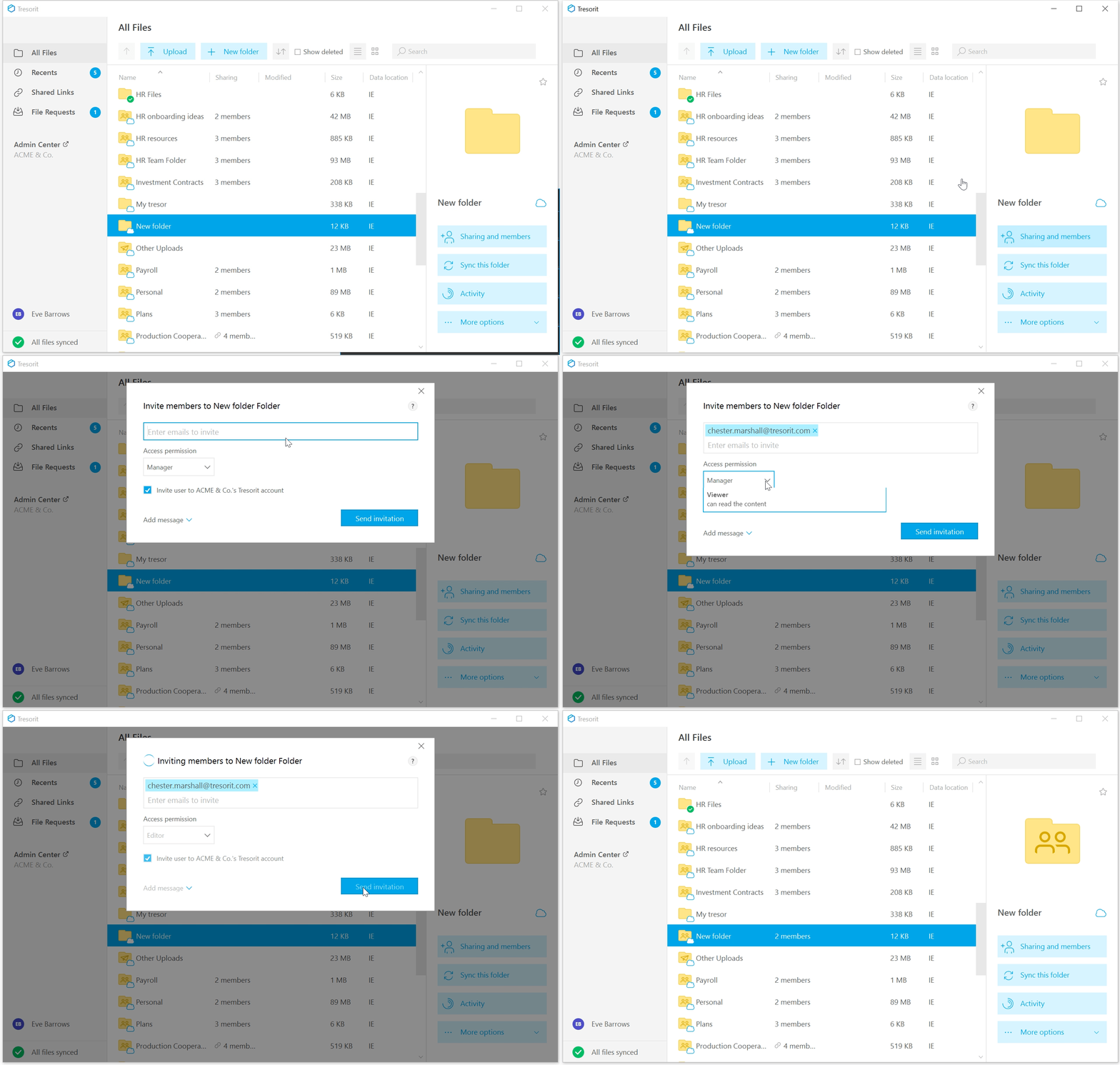
- Right-click the folder you want to share.
- Select
Sharing and members.
- Click
Invite members.
-
Enter the invitee's email address.
ℹ️ In Outlook desktop ((Windows & macOS), enter the group name, click
to expand, then copy and paste all email addresses directly into the field.
- Set the access permission.
- Business subscription owners can also add invitees to the subscription. Uncheck the box to skip this.
- Add a message (optional).
- Click Send invitation.
- Tap the arrow icon
next to the folder you want to share.
- Tap
Sharing and members.
- Tap Add member.
- Enter the invitee's email address.
- Business subscription owners can also add invitees to the subscription. Uncheck the box to skip this.
- Add a message (optional).
- Choose the access permission.
- Tap Invite.
- Tap the three dots
next to the folder you want to share.
- Tap
- Tap the
icon in the lower-right corner.
- Enter the invitee's email address.
- Business subscription owners can also add invitees to the subscription. Uncheck the box to skip this.
- Choose the access permission.
- Add a message (optional).
- Tap INVITE.
- Hover over the folder you want to share.
- Click Share.
- Select
- Enter the invitee's email address.
- Set the access permission.
- Business subscription owners can also add invitees to the subscription. Uncheck the box to skip this.
- Add a message (optional)
- Click Send invitation.
ℹ️ See how to accept or decline folder invitations.