Available for ☑️
Plan: Business, Business Pro, Enterprise
Role: Owner, Co-Owner
When someone leaves your organization, it's essential to take a few steps to prevent data loss. Make sure their folders are transferred before their account is deleted; otherwise, the folders they own will be permanently removed as well.
Folder ownership can be transferred either with the user's cooperation or through folder takeover.
Transfer folders without Advanced Control
If Advanced Control is not available or not enabled in your subscription, you need to transfer folder ownership manually:
- Open
Users in your Admin Center.
- Select the departing user.
- Go to the Folders tab.
- Review the user's folders.
- Then work with the user to transfer folder ownership.
- Once completed, delete the account.
Folder takeover with Advanced Control
If Advanced Control is enabled and the policy changes are accepted, subscription Owners or Co‑Owners can perform a folder takeover in the Admin Center.
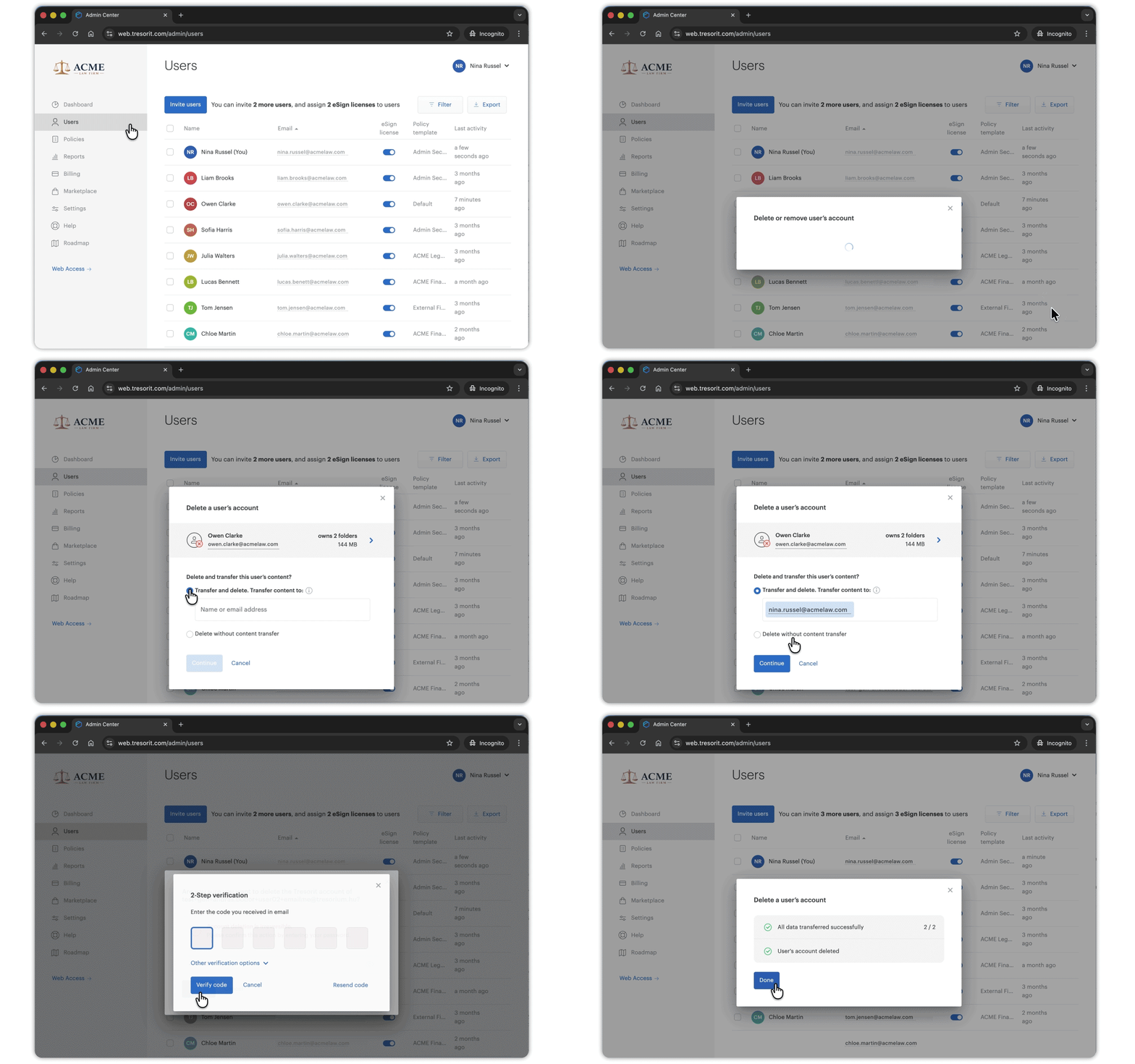
- Delete the user's account
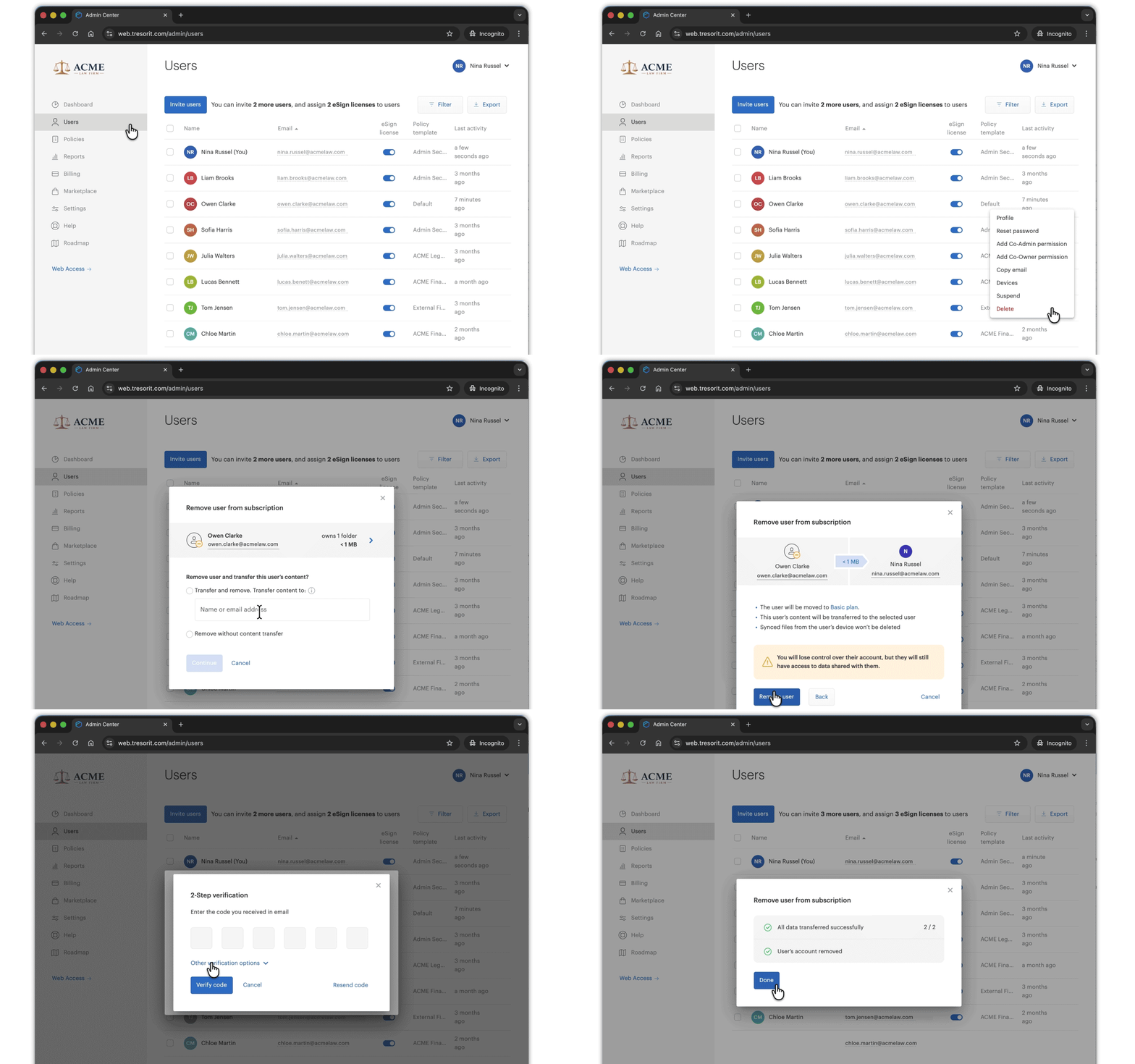
- Remove user from subscription
When deleting a user's account, take extra care to ensure no data is lost.
- If the user owns folders, select the transfer option to reassign their folders.
- If the account owns no folders, proceed without transfer.
⚠️ Deleting the account without transferring its folders will permanently erase all data.
- Open
- Hover over the user.
- Click the gear icon
on the right.
- Click Delete.
- Choose Delete user's account.
- Select Transfer and remove.
- Enter the email address of the new folder owner (must be within the subscription and have already accepted Advanced Control).
- Click Continue.
- Click Delete account.
- Enter your password and click Confirm.
- If any folders couldn't be transferred, click Try again.
If you want the user to keep access to their data without being part of the subscription, choose to remove them.
- The user will retain a Basic account and remain the owner of their folders.
- You will no longer have control over their account or data.
- Open
- Hover over the user.
- Click the gear icon
- Click Delete.
- Choose Remove user from subscription.
- Select Transfer and remove.
- Enter the email address of the new folder owner (must be within the subscription and have already accepted Advanced Control).
- Click Continue.
- Click Remove user.
- Enter your password and click Confirm.
- If any folders couldn't be transferred, click Try again.
After folder transfer
- Both the previous and the new owner will receive an email notification about the folder transfer.
- The new owner will see the folders under the Transferred section, labeled with the previous owner's email address.
- If the new owner was already a member of a shared subfolder, they will see a summary about the permission changes.