Available for ☑️
Permission: Owner, Manager
Tresorit links provide a secure, one-way method for sharing content with internal and external partners. Anyone with the link can view and download the shared items in a browser, but cannot modify or overwrite the content.
- You can share files and folders from Tresorit or directly from your computer.
- Links always show the latest version of your files, so you don't need to create a new link after updates.
- Edit settings, revoke access, or delete shared links at any time.
- Depending on your plan, extra features, such as disabling downloads, restricting access, viewing detailed access logs, or two-way sharing via cooperative links are also available.
- Business subscription admins can predefine link sharing policies.
- Engage rooms listed in SecureCloud cannot be shared via links.
ℹ️ See plan-specific link limitations.
Create links in Tresorit
- Desktop (Windows, macOS, Linux)
- iOS
- Android
- Web Access
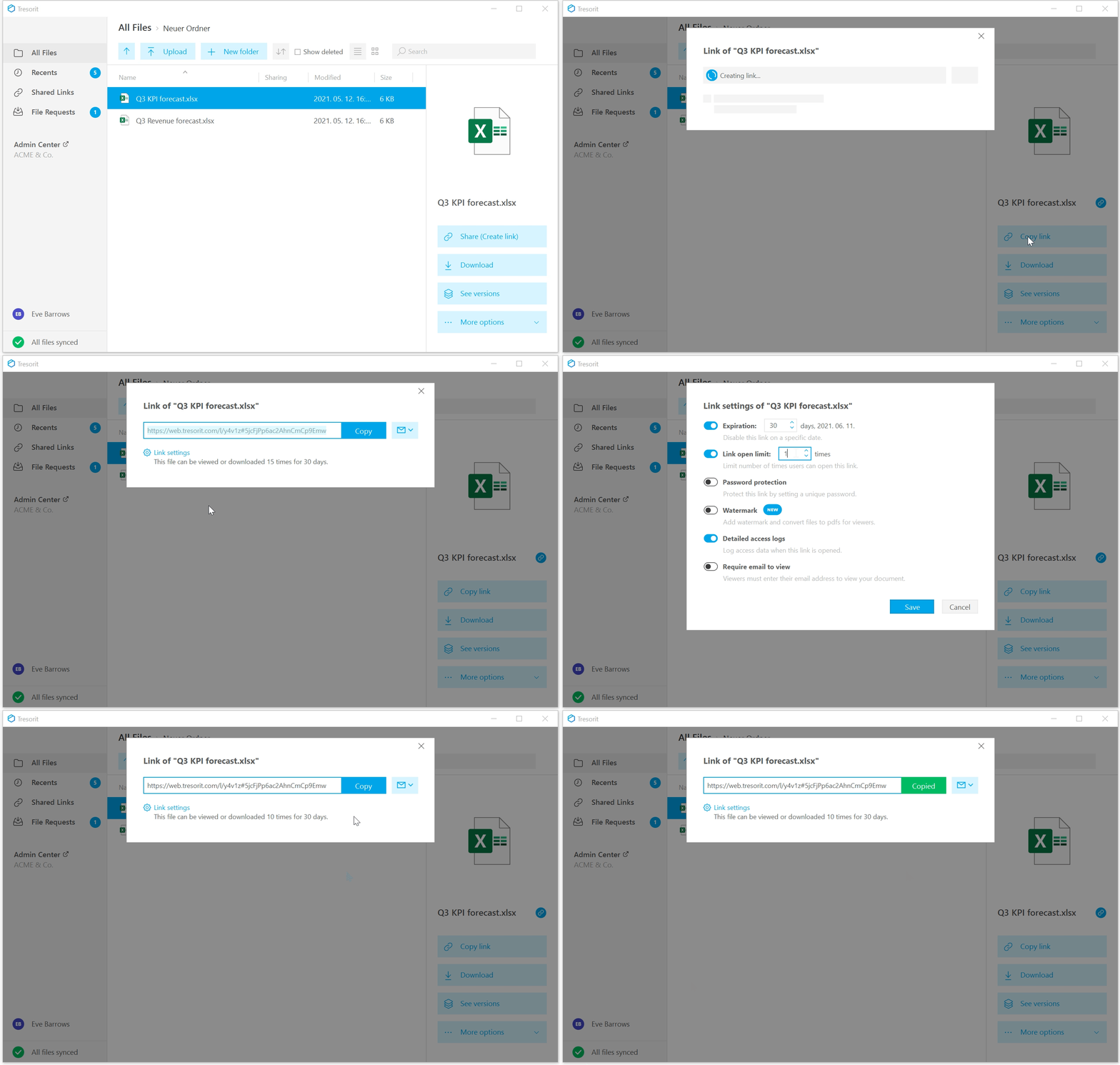
- Right-click the file or folder you want to share.
- Select
Sharing and members.
- Choose
Share with link.
- Wait for the link to generate, then click
Link settings.
- Customize settings (Tresorit saves them for next time).
-
Copy the link URL or send it via email.
Your link will appear under
Shared Links, where you can manage it.
- Tap the arrow icon
next to the file or folder you want to share.
- Select
Sharing and members (folders) or
- Customize settings (Tresorit remembers them for next time).
- Tap Activate to generate the link.
-
Copy the link URL or share it via a preferred app.
Your link will appear under
- Tap the three dots
next to the file or folder you want to share.
- Tap
- Tap the
- Customize settings (Tresorit saves them for next time).
- Tap ACTIVATE to generate the link.
-
Copy the link URL or share it via a preferred app.
Your link will appear under
- Hover over the file or folder you want to share.
- Click Share.
- Select
- Wait for the link to generate, then click
- Customize settings (Tresorit saves them for next time).
-
Copy the link URL or send it via email.
Your link will appear under
Share local files with links
Share files and folders directly from your device, even if they aren't stored in Tresorit yet.
- Desktop (Windows, macOS, Linux)
- iOS
- Android
- Make sure Tresorit is running.
- Right-click the local file or folder you want to share.
- Select
Share (Create link).
- Tresorit will open and generate the link.
- Click
- Customize settings (Tresorit saves them for next time).
-
Copy the link URL or send it via email.
The shared item appears in Other Uploads, and the link is listed under
- Make sure you are logged in to Tresorit.
- Open the Files or Photos app.
- Long-press the file or folder you want to share.
- Tap
- Choose
Send with Tresorit Link.
- Tresorit will open.
- Tap Link Settings.
- Customize settings (Tresorit saves them for next time).
- Tap Activate to generate the link.
-
Copy the link URL or share it via a preferred app.
The shared item appears in Other Uploads, and the link is listed under
- Make sure you are logged in to Tresorit.
- Open your file manager or gallery app.
- Select the file or folder you want to share.
- Tap
Share.
- Choose
- Tresorit will open.
- Tap
Link settings.
- Customize settings (Tresorit saves them for next time).
- Tap ACTIVATE to generate the link.
-
Copy the link URL or share it via a preferred app.
The shared item appears in Other Uploads, and the link is listed under